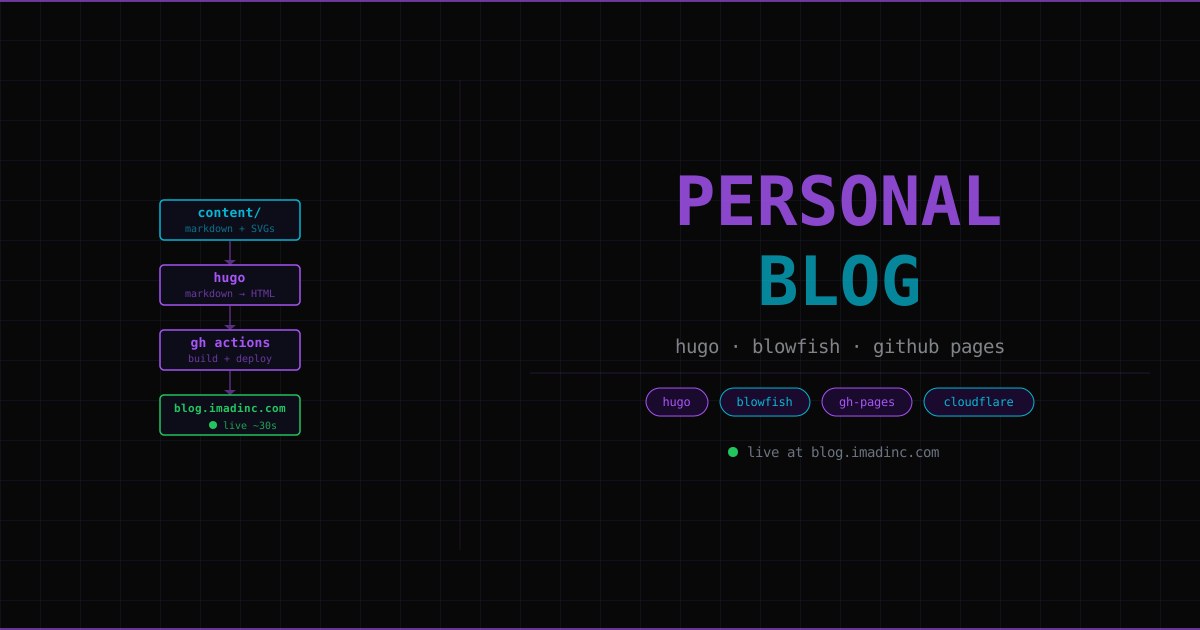
This page is a full tutorial on how this site works — not just what tools were used, but why they exist, what problems they solve, and how to understand them well enough to build your own version from scratch.
The core idea: static vs dynamic websites#
Before picking any tools, understand the two fundamentally different ways a website can work.
A dynamic website runs server-side code on every request. When you visit a WordPress blog, a server receives your request, queries a database, runs PHP code, builds the HTML, and sends it back. The page is generated on demand. This gives you flexibility (user logins, comments, personalisation) but adds complexity: you need a server running 24/7, a database, runtime dependencies, and things that can break.
A static website is just files — HTML, CSS, and JavaScript — that already exist on disk. When a request comes in, the server just returns the file. No code runs, no database is queried. The page was built in advance, once, and the result is what gets served.
Static sites are faster (serving a file is trivial), cheaper (no server to maintain), and far simpler to host. The trade-off is that you can’t do things that require server-side logic per request. For a personal blog, that trade-off is completely worth it.
What is a static site generator?#
Writing HTML by hand for every page is tedious and error-prone. If your navbar changes, you’d have to update every single file. Static site generators (SSGs) solve this by letting you write content in a simple format (Markdown), define layouts once, and generate all the HTML automatically.
The mental model:
source files (Markdown + templates + config)
        ↓
   static site generator
        ↓
   output folder of pure HTML/CSS/JS
You write a post in Markdown like this:
# My Post Title

Some content here. This is **bold** and this is *italic*.
The SSG takes that, wraps it in your site’s layout (navbar, footer, styling), and produces a complete HTML page. Change the layout template once and every page updates.
Hugo is the SSG this site uses. It’s written in Go and compiles to a single binary — no package managers, no dependencies, no version conflicts. You download one file, run it, and your site builds in milliseconds.
The folder structure, explained#
blog/
├── content/          ← your writing lives here
│   ├── posts/        ← blog posts (have dates, sorted chronologically)
│   └── projects/     ← projects (evolve over time, no dates shown)
├── config/
│   └── _default/
│       ├── hugo.toml          ← core settings (base URL, theme name)
│       ├── params.toml        ← theme behaviour (dark mode, TOC, hero)
│       ├── languages.en.toml  ← name, bio, logo, author links
│       └── menus.en.toml      ← navbar items
├── assets/
│   └── css/
│       └── custom.css    ← ALL visual overrides go here
├── themes/
│   └── blowfish/         ← the theme (never edited directly)
├── static/
│   ├── img/              ← images referenced in content
│   ├── CNAME             ← tells GitHub Pages your custom domain
│   └── .nojekyll         ← tells GitHub not to run its own build system
└── .github/
    └── workflows/
        └── deploy.yml    ← the automated build and deploy pipeline
Each folder has a specific job. Hugo knows where to look for each type of file because of established conventions. You don’t configure “look in content/ for pages” — Hugo just does, because that’s the convention.
Content: posts vs projects#
Posts have dates that matter. They’re events in time — conference recaps, tutorials written at a specific moment, opinions. Hugo sorts them chronologically.
Projects evolve. A homelab isn’t finished on one date. The TAOMM reading notes grow over months. These use showDate: false so the “when” doesn’t matter, just the “what”.
The theme and why you never edit it#
Blowfish is the theme — it handles all the HTML templates, CSS framework (Tailwind), and layout logic. It lives in themes/blowfish/ as a git submodule, which means it’s a separate Git repository embedded inside this one. When the theme authors release an update, you pull it in without any manual copying.
The critical rule: never edit files inside themes/blowfish/. If you do, those edits get overwritten the next time you update the theme. Instead, Hugo has an override system: any file you put in the root layouts/ or assets/ folder takes precedence over the equivalent file in the theme. custom.css works exactly this way — it loads after the theme’s CSS and can override anything.
How the theme customisation system works#
Blowfish uses Tailwind CSS, a utility-first CSS framework. Instead of writing .my-button { padding: 8px; }, Tailwind gives you classes like px-2 that mean the same thing. The HTML has these classes baked in.
When you want to change how the site looks, you have two options:
Config params — Blowfish exposes hundreds of settings (
colorScheme,showTableOfContents,showRelatedContent, etc.) that you set inparams.toml. Always try this first.Custom CSS — anything that config can’t reach, you override in
assets/css/custom.css. You target elements using regular CSS selectors, then overwrite their styles. For example, to make the navbar background a frosted glass blur:
#menu-blur {
  background: rgba(8, 8, 8, 0.6) !important;
  backdrop-filter: blur(12px);
}
The !important is sometimes needed to beat Tailwind’s specificity. This is normal when overriding a utility framework.
The background gradient that gives the site its look:
body {
  background:
    radial-gradient(ellipse at top left, rgba(168, 85, 247, 0.18) 0%, transparent 50%),
    radial-gradient(ellipse at bottom right, rgba(6, 182, 212, 0.12) 0%, transparent 50%),
    #080808;
  background-attachment: fixed;
}
Two radial gradients layered on a dark base. background-attachment: fixed keeps the gradient anchored to the viewport rather than scrolling with the page.
SVGs as feature images#
Every post and project has a feature image — the card visual that appears in listings. These are hand-coded SVGs.
What is an SVG? SVG stands for Scalable Vector Graphics. Unlike a JPEG or PNG (which store pixel data), an SVG is a text file describing shapes using XML. A circle is <circle cx="100" cy="100" r="50"/> — centre at (100,100), radius 50. Because it describes geometry rather than pixels, it scales to any resolution without blurring.
A minimal SVG:
<svg xmlns="http://www.w3.org/2000/svg" width="400" height="200" viewBox="0 0 400 200">
  <rect width="400" height="200" fill="#080808"/>
  <text x="200" y="110" font-family="monospace" font-size="24" fill="#a855f7"
        text-anchor="middle">Hello</text>
</svg>
viewBox defines the internal coordinate system. width and height are the rendered size. These can differ — the SVG scales to fit.
text-anchor="middle" means the x coordinate is the centre of the text, not the left edge. Essential for centering text.
To create the glow effects seen on this site’s feature images:
<defs>
  <filter id="glow">
    <feGaussianBlur stdDeviation="3" result="coloredBlur"/>
    <feMerge>
      <feMergeNode in="coloredBlur"/>
      <feMergeNode in="SourceGraphic"/>
    </feMerge>
  </filter>
</defs>

<text filter="url(#glow)" ...>BLOG</text>
The filter blurs a copy of the element and composites it behind the original — giving the glow without blurring the sharp version.
What is GitHub Actions?#
GitHub Actions is a CI/CD system — Continuous Integration / Continuous Deployment. Those terms sound complex but the idea is simple: automatically run a script every time you push code.
The mental model:
you push code to GitHub
        ↓
GitHub detects the push
        ↓
GitHub spins up a fresh virtual machine
        ↓
runs your workflow file step by step
        ↓
result: built files deployed to GitHub Pages
The workflow is defined in .github/workflows/deploy.yml. YAML is just a structured text format — indentation means nesting.
Here’s what the deploy workflow does, step by step:
on:
  push:
    branches: [main]
Trigger: run this whenever someone pushes to the main branch.
- uses: actions/checkout@v4
  with:
    submodules: true
Step 1: check out the repository code onto the virtual machine. submodules: true also pulls in the Blowfish theme submodule — without this, the themes/blowfish/ folder would be empty.
- name: Setup Hugo
  env:
    HUGO_VERSION: "0.162.0"
  run: |
    wget -q https://github.com/gohugoio/hugo/releases/download/v${HUGO_VERSION}/hugo_extended_${HUGO_VERSION}_linux-amd64.tar.gz
    tar -xzf hugo_extended_${HUGO_VERSION}_linux-amd64.tar.gz
    sudo install hugo /usr/local/bin/
Step 2: download the Hugo binary directly from its GitHub releases. This is more reliable than using a third-party action — no dependency on someone else’s code.
- name: Build
  run: hugo --minify
Step 3: run Hugo. --minify strips whitespace from the output HTML/CSS/JS, making files smaller.
- uses: actions/upload-pages-artifact@v3
  with:
    path: ./public
- uses: actions/deploy-pages@v4
Steps 4–5: take the public/ folder (Hugo’s output) and deploy it to GitHub Pages.
The whole pipeline runs in about 30 seconds. Every push to main triggers it — you never manually deploy.
How DNS and custom domains work#
The internet routes traffic using IP addresses — numbers like 185.199.108.153. Humans use domain names like blog.imadinc.com. DNS (Domain Name System) is the global system that translates one to the other. Every domain name maps to one or more DNS records stored on nameservers around the world.
When a browser visits blog.imadinc.com:
- Your device asks a DNS resolver: “what’s the address for
blog.imadinc.com?” - The resolver looks up the DNS records for
imadinc.com(managed in Cloudflare) - It finds a CNAME record pointing to
syed-imad.github.io - It then looks up
syed-imad.github.ioand gets GitHub’s IP addresses - Your browser connects to that IP — GitHub’s servers — which serve the blog
Record types:
An A record maps a name directly to an IP address:
Type: A Name: @ Content: 185.199.108.153(@ means the root domain itself — imadinc.com.)
A CNAME record maps a name to another name (an alias):
Type: CNAME Name: blog Content: syed-imad.github.ioThe blog name field creates the subdomain blog.imadinc.com. CNames are preferred for subdomains pointing at services like GitHub, because GitHub’s IP addresses can change — they manage that, not you.
Why Cloudflare’s proxy must be disabled:
Cloudflare sits in front of many domains and can intercept traffic (for caching, DDoS protection, etc.). When the proxy is enabled (orange cloud), traffic goes through Cloudflare’s servers and GitHub only ever sees Cloudflare’s IP. GitHub can’t verify that you own the domain, so it can’t issue the HTTPS certificate.
With proxy disabled (grey cloud), Cloudflare just answers “here’s the real address” and steps aside. GitHub sees the connection coming from the correct domain, verifies ownership, and issues the certificate automatically.
The CNAME file:
GitHub Pages needs a file called CNAME in the root of the deployed site, containing your domain. Without it, GitHub Pages forgets the custom domain setting when you redeploy. Putting it in static/CNAME means Hugo copies it into every build automatically.
blog.imadinc.comThat’s the entire file.
Writing and publishing content#
Every piece of content is a folder containing an index.md file and optionally a feature.svg. The folder name becomes the URL slug.
content/posts/my-post/
├── index.md       ← the content
└── feature.svg    ← the card image
Front matter goes at the top of index.md, between --- markers. This is YAML metadata that Hugo reads:
---
title: "My Post"
date: 2026-06-09
draft: false
tags: ["macos", "security"]
summary: "Shown on the card in listings."
---

Your Markdown content goes here.
draft: true hides the post on the live site but shows it with hugo server -D locally. Use this while writing.
To preview locally before publishing:
hugo server --source /home/imad/myProjects/blogHugo watches for file changes and rebuilds instantly. Visit localhost:1313 to see the site exactly as it will appear live.
To publish: save the file, then:
git add content/posts/my-post/
git commit -m "add post: my post title"
git push origin main
GitHub Actions takes it from there.
Tech#
- Hugo — static site generator
- Blowfish — Hugo theme
- GitHub Actions — automated build and deploy
- GitHub Pages — hosting
- Cloudflare — DNS and domain management
- Repo: github.com/Syed-Imad/Syed-Imad.github.io
Actively maintained. New posts added as things worth writing about happen.