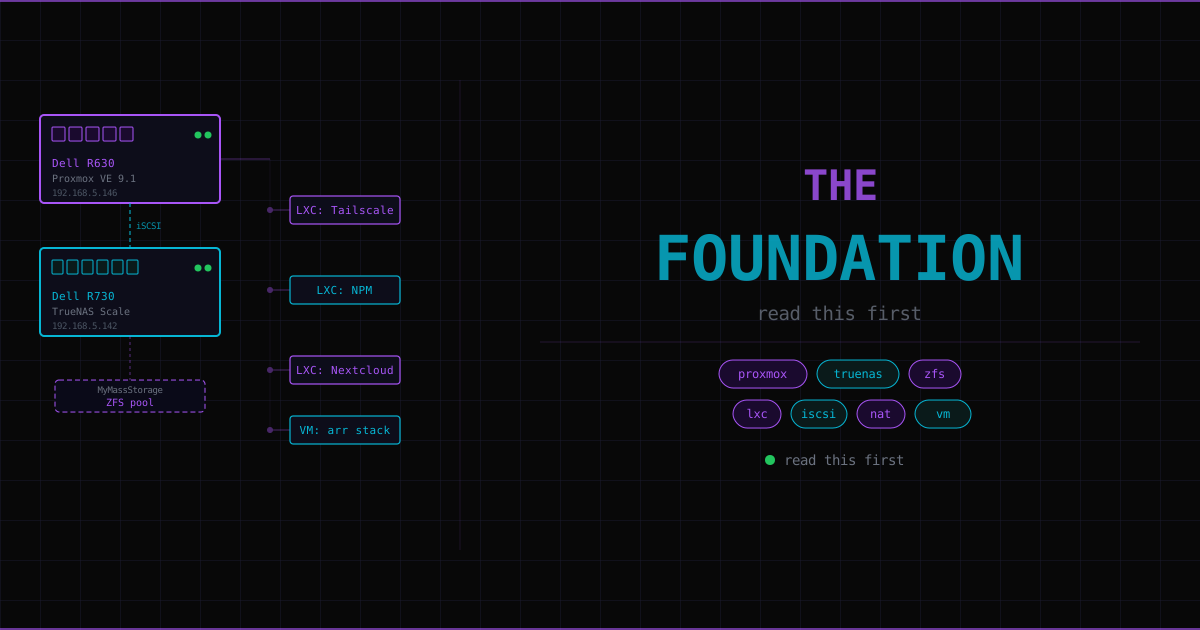
This page covers the foundational concepts behind the homelab — the things every other service page assumes you understand. For the actual hardware, network topology, and storage layout, see the Infrastructure page. This page is about the why and how of the technologies used there.
What a homelab is and why#
A homelab is a server (or set of servers) that you run yourself, at home, on hardware you control. No cloud provider, no subscription, no abstracted infrastructure.
The point isn’t to save money — cloud services are often cheaper. The point is that when something breaks in a homelab, you have to understand it properly to fix it. There’s no support ticket. You read the logs, trace the problem, identify which layer is failing, and fix it yourself.
Cloud providers abstract away everything that matters: storage pools, hypervisor config, network routing, certificate management. A homelab makes all of it visible.
Proxmox: the hypervisor#
When you have a powerful server, you run many isolated environments on it simultaneously. The software that makes this possible is a hypervisor.
Proxmox VE runs directly on the R630’s bare metal — there’s no Windows or Ubuntu underneath it. When you boot the server, Proxmox starts. Everything else runs inside Proxmox as VMs or containers.
VMs vs LXC containers: the key architectural decision#
This is the most important concept in the homelab. Understanding it properly lets you make the right choice for every service.
The question: how does the OS guarantee that process A can’t see or affect process B?
Virtual Machines#
A VM runs an entirely separate kernel. Proxmox emulates hardware — a virtual CPU, virtual RAM, virtual network card. The guest OS (e.g. Ubuntu) boots inside this emulated hardware and loads its own kernel. From the guest’s perspective it’s running on a real machine.
Result: complete isolation. Guest kernel can be different from the host kernel. A vulnerability in the guest can’t escape to the host without a hypervisor exploit. Cost: full OS overhead — multiple gigabytes of disk, hundreds of megabytes of RAM, seconds of boot time.
LXC Containers#
LXC containers share the host kernel but use two kernel features to create isolation:
Namespaces — the kernel gives each container its own view of the world:
- PID namespace: PID 1 inside the container is e.g. PID 4823 on the host
- Network namespace: each container has its own interfaces and routing tables
- Mount namespace: each container sees its own filesystem root
Cgroups (control groups) — resource accounting. “This container can use at most 2 cores and 4GB RAM.” Without cgroups, a runaway process in one container could starve the host.
VMs:
    [Host OS + Hypervisor]
         │
    ┌────┴─────┐
    │ Guest OS │   ← full kernel, own init, own filesystem
    │ Ubuntu   │   ← 2GB+ RAM overhead
    └──────────┘

LXC:
    [Host OS Kernel — shared]
         │
    ┌────┴──────┐
    │ LXC       │   ← separate namespace, cgroup limits
    │ (process) │   ← ~50MB RAM overhead
    └───────────┘
Rule of thumb: LXC for infrastructure services (database, reverse proxy, VPN gateway). VM for running Docker (where you want the Docker daemon fully isolated, not nested in an LXC).
Unprivileged LXCs and UID mapping#
Proxmox creates LXCs as unprivileged by default. Inside an unprivileged LXC, the root user appears to be UID 0 — but on the host it’s actually UID 100000. If that “root” escaped the container namespace, it would be an unprivileged user on the host, not actual root.
This creates a practical problem with NFS mounts: NFS authentication is UID-based. LXC root (host UID 100000) doesn’t match the NFS server’s expected UIDs. The fix: mount NFS on the Proxmox host, then pass the folder into the LXC via a bind mount. The LXC sees a directory, not a network mount — UID mapping becomes irrelevant.
This is one reason most services here use iSCSI block storage instead of NFS.
TrueNAS and ZFS: how storage works#
TrueNAS runs on the R730 and provides all persistent storage. The important part is ZFS — the filesystem underneath TrueNAS.
Why ZFS exists#
Traditional filesystems (ext4, NTFS) overwrite data in-place. If a write is interrupted (power failure, kernel panic), the file can be left corrupt — part old data, part new. ZFS solves this with two mechanisms:
Copy-on-write (COW): ZFS never overwrites. When you modify a file, ZFS writes the new version to empty space, updates a pointer to point at the new location, then marks the old space free. If the write is interrupted, the pointer hasn’t been updated — the old version is still intact. The partial new write is orphaned data that ZFS discards.
Checksums: Every block stored in ZFS has a cryptographic checksum stored separately (in the parent tree, not next to the data). When ZFS reads a block, it checksums what it read and compares to the stored checksum. If they don’t match, the data has been silently corrupted — and ZFS knows. It can recover from a mirror. Traditional filesystems would silently return the corrupt data without knowing.
Snapshots: Because ZFS never overwrites, taking a snapshot is instantaneous. A snapshot is just a frozen pointer to the current state — no data is copied. As files change after the snapshot, the old versions remain accessible through it.
Pools, datasets, and zvols#
Pool — the collection of physical drives. ZFS manages redundancy at this level. Example: MyMassStorage.
Dataset — a mounted filesystem within the pool. Like a folder with its own quota, compression, snapshot schedule. Can be shared over NFS or SMB. You browse it as a directory tree.
Zvol — a raw block device within the pool. Has a fixed size. Exported via iSCSI. You format it yourself (with ext4). The consumer (a Proxmox LXC) sees it as a physical disk.
The key distinction:
- Dataset → use when you want a browsable filesystem (backups, media files, Obsidian vault)
- Zvol → use when the app needs block storage (databases, anything using file locking, Nextcloud data directory)
iSCSI: block storage over the network#
iSCSI (Internet Small Computer Systems Interface) takes SCSI commands — the standard language computers use to talk to storage devices — and sends them over TCP/IP instead of a physical cable.
When you plug a drive via SATA, the computer sends SCSI commands down the cable. iSCSI sends the same commands over the LAN. TrueNAS holds the storage. Proxmox LXCs are the consumers.
From the LXC’s perspective: identical to a locally attached disk. It appears as /dev/sdb. The LXC has no idea it’s talking to network storage. This is why file locking works correctly — the application thinks it’s using a local disk, because as far as POSIX semantics go, it is.
The 5 TrueNAS iSCSI components#
All five must exist and be correctly linked:
| Component | What it is |
|---|---|
| Portal | Network endpoint — IP and port TrueNAS listens on (0.0.0.0:3260) |
| Initiator Group | Which clients may connect — contains initiator IQNs |
| Authorized Access | Authentication — open access on a private LAN |
| Extent | The actual storage — points at a zvol |
| Target | The named iSCSI object — links Portal + Initiator Group + Extent |
IQNs — the thing that trips everyone up#
Every iSCSI device has an IQN (iSCSI Qualified Name). Format:
iqn.YYYY-MM.reverse-domain:identifierTrueNAS matches initiators by IQN, not by IP address. The Proxmox initiator IQN is auto-generated:
cat /etc/iscsi/initiatorname.iscsi
# InitiatorName=iqn.1993-08.org.debian:01:e7dd6e7909d
The most common mistake: putting 192.168.5.146 (the Proxmox IP) in the Initiator Group’s “Allowed Initiators” field. TrueNAS ignores IPs there. The connection succeeds at TCP level, but TrueNAS returns zero targets because no IQN matched:
iscsiadm: discovery session to 192.168.5.142:3260 received text response, 0 data bytesZero bytes = connection worked, but no matching initiator found. Fix: delete the initiator group, recreate with the actual Proxmox IQN.
Correct setup order#
Must be built in this sequence:
- Create Portal → note Portal Group ID
- Create Initiator Group → paste Proxmox IQN → note Initiator Group ID
- Create Extent → point at zvol
- Create Target → link Portal Group ID + Initiator Group ID
- Associate Extent to Target at LUN 0
Never use the TrueNAS iSCSI wizard. It produces broken configurations. Always build manually.
Getting started with your own homelab#
You don’t need enterprise hardware. The concepts work on anything.
Minimum setup: one machine running Proxmox (works on most x86 hardware with virtualisation enabled in BIOS). Or Ubuntu Server with Docker if you want to skip the hypervisor layer.
Install Proxmox: download the ISO from proxmox.com, flash to USB, boot and install. It takes about 10 minutes.
First LXC: Proxmox has a built-in template library. Download an Ubuntu 22.04 template and create an LXC from it in the web UI — takes 2 minutes. You get a full Ubuntu environment in ~50MB RAM.
The best approach: build up one layer at a time. One service teaches one concept. Proxmox teaches virtualisation. Adding Tailscale teaches WireGuard and kernel networking. Adding NPM teaches reverse proxies and TLS. Each problem you debug teaches something that transfers to the next service.